
PRODUCT UPDATES
- Release Updates || 20th September 2025
- Release Updates || 20th August 2025
- Release Updates || 20th July2025
- Release Updates || 17th June2025
- Release Updates || 7th May,2025
- Release Updates || 26th Mar,2025
- Release Updates || 14th Feb,2025
- Release Updates || 17th Jan,2025
- Release Updates || 10th Dec,2024
- Release Updates || 22th Nov,2024
- Release Updates || 18th Oct,2024
- Release Updates || 18th Sep,2024
- Release Updates || 13th Aug,2024
- Release Updates || 17th July,2024
- Release Updates || 25th June,2024
- Release Updates || 3rd May, 2024
- Release Updates || 16th Mar, 2024
- Release Updates || 26th Oct, 2023
- Release Updates || 3rd Oct, 2023
- Release Updates || 30th Sept, 2023
- Release Updates || 15th Sept, 2023
HIGHLIGHTS
-
AGENT : New Group Status column with popup edit options & counts;
Reports
- Enhanced Agent Activity Report with new columns for Calls Routed & Routed Calls Answered.
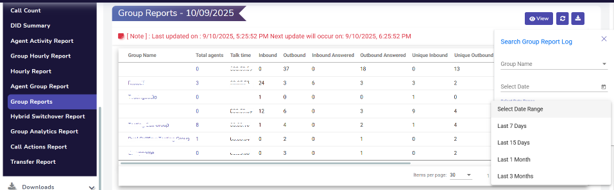
- Extended Group Report Filter for 3 months;
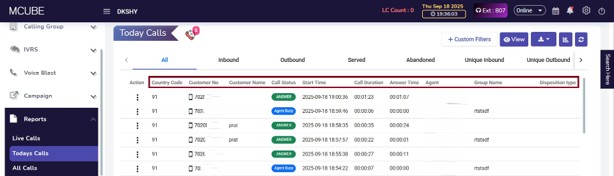
- Default columns standardized in Today’s & All Calls (First 10 columns).
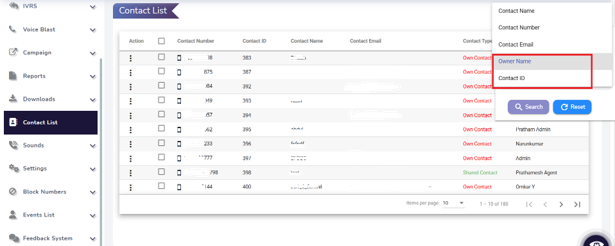
CONTACT LIST : New search filters – Owner Name and Contact ID. :
APIs – Agent Activity Report & Call Disconnection API.
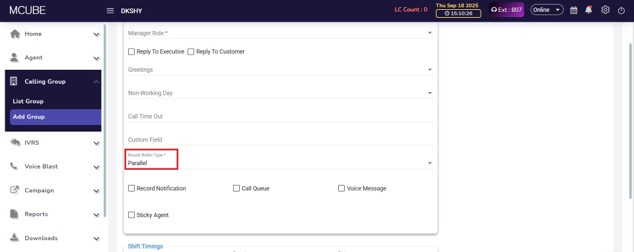
GROUP – Parallel Calling (Up to 3 Agents).
AGENT
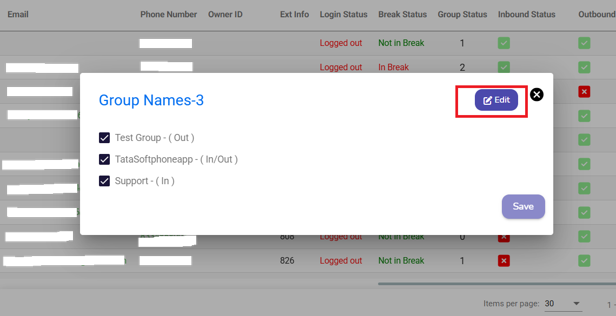
Group Information in Agent List : A “Group Status” column is now in the Agent List, showing how many groups each agent is in, with a pop-up to manage group configuration for the agent.
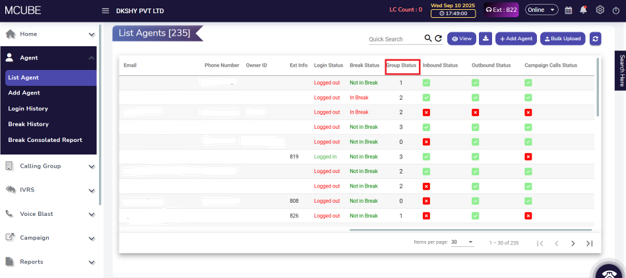
Clicking the count opens a pop-up for editing and group configuration, while the calling group configuration has been removed from the action button.
● Agent Calling Status Control :
- In List Agent : A new “Agent Call Status” setting is now in the List Agents section. By default, it’s visible, and higher roles can see their assigned calling access. With edit access, they can update calling statuses.
Clicking an agent’s status now opens a pop-up to enable or disable their current call status.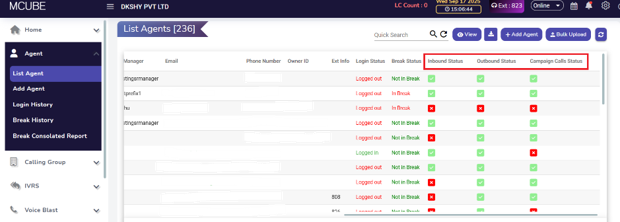
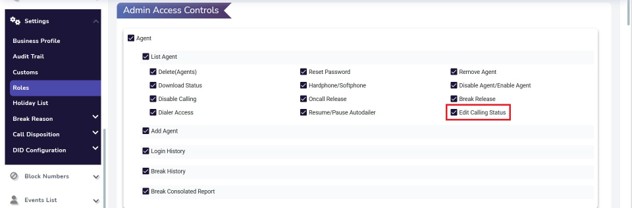
Note: This is a feature-based enhancement.
- Header : Agents can now only view or edit their own calling status for Inbound, Outbound, and Campaign.
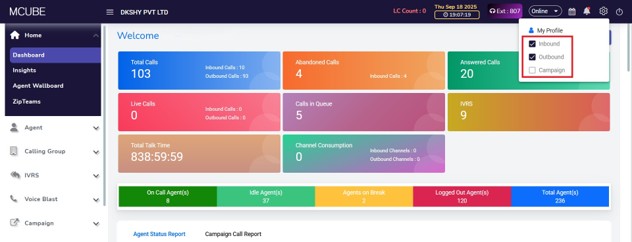
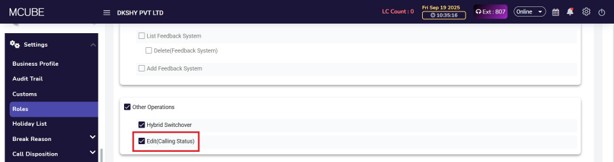
Note: This is a feature-based enhancement.
Campaign
- Campaign Data Access : The restriction on group membership for Team Leaders and higher roles has been removed, allowing them to access all campaign details and reports for agents reporting to them, regardless of group or campaign alignment.
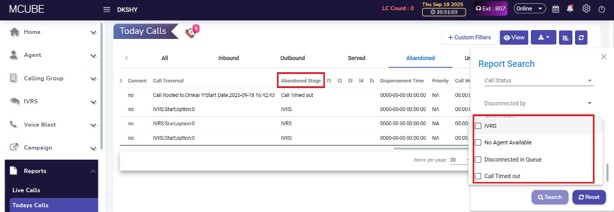
- Abandoned Stage Visibility : A new Abandoned Stage has been introduced in the Abandoned Calls Tab – a Column and filter to search with, for displaying the stage at which a call was abandoned.
Report
- Enhancements to Agent Activity Report : Two new columns have been introduced in the Agent Activity Report to provide deeper insights into call handling and routing efficiency
- Call Routed : Displays the count of calls that were routed to the agent through call flow or distribution logic, excluding calls that landed directly with the agent.
- Routed Calls Answered : Displays the count of calls that were routed to the agent through call flow or distribution logic and were successfully answered by the This excludes directly received and answered calls.
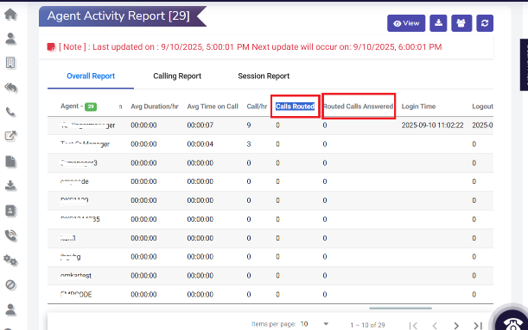
These additions enable teams to better analyze agent performance and routing effectiveness across calling operations.
- Call ID in Downloads – The Call ID column is now included in downloads for Today’s and All Calls.
- Extended Group Report Filter Capability : The Group Report filter now allows data retrieval for up to three months, and results can be downloaded for analysis.
- Default Columns Today’s & All Calls : These reports now display 10 default columns, ensuring a standardized view of call data across the report.
Contact List
- Contact List Search Filters : New search filters, Owner Name (multi-select) and Contact ID, have been added to the Contact List.
APIs
- Call Disconnection API: A new Call Disconnection API has been introduced, allowing active calls to be disconnected programmatically based on requests made from the client
|
Parameters |
Description |
|
token |
Business Token |
|
callid |
Live Callid |
- Agent Activity Report API : An API for the Agent Activity Report has been introduced, enabling seamless access to agent performance data for integration, automation, and advanced reporting needs.
Group
- Parallel Calling: Added a Parallel Calling option in the panel while creating a group, available under the Round Robin Type This functionality allows routing calls in parallel to a maximum of 2 agents simultaneously.
Note: This is a feature-based enhancement.
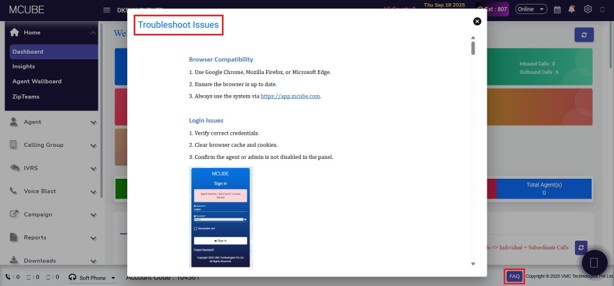
- MCUBE FAQ: Added an FAQ icon in the footer for troubleshooting It provides step-by-step instructions with screenshots for easy issue resolution.
Reports
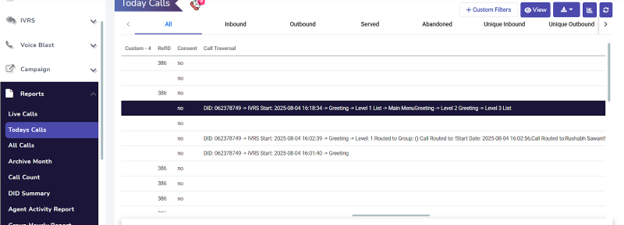
- Call Traversal Report Update: : In the A new Call Traversal report for IVRS has been introduced, offering a detailed overview of the call journey, including key milestones like IVRS initiation, caller options, queue times, and transfers. This helps teams analyze call flow and improve efficiency. Similar updates have been made in Actions -> All Data -> IVRS Route, with the removal of the Date & Time column. (Global Feature).
The updated Call Traversal Format will be displayed as below :DID: DID Number → IVRS Start: 10:02:01 → Level 1 [Option: Selected Input] (Option Name) → Level 2 [Option : Selected input] (Option Name) → Level 3 [Option : Sected Input] (Option Name) → Routed to Group: Group Name → Agent: Agent Name.
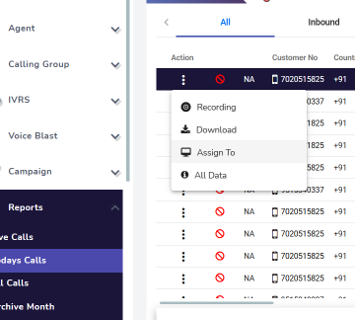
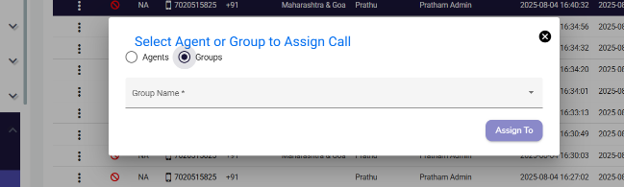
- Assign by Group and Agent: The assignment feature now supports selecting the group and route call in round robin within that group. Previously, users could only assign call data by searching for individual agents. This enhancement streamlines the process by allowing group-based filtering and more efficient agent assignment. (Global Feature).
CAMPAIGN :
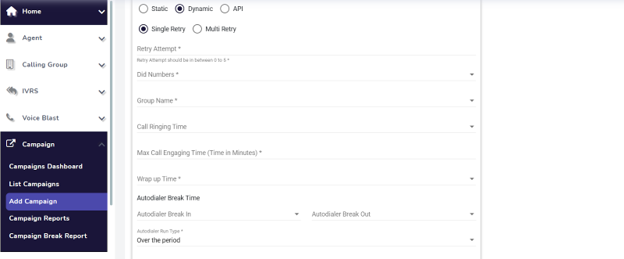
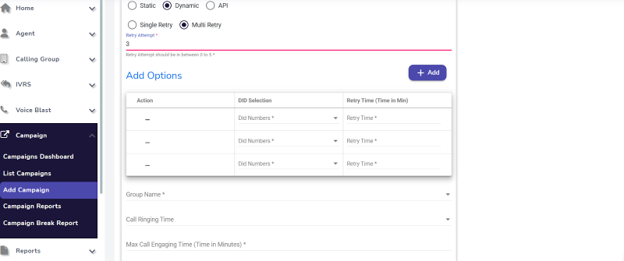
- Campaign Retry DID Configuration: The latest update introduces the ability to assign specific DIDs for specific retry attempts in campaigns. Users can define the number of retries and select the corresponding DID for each attempt from a dropdown list of available DIDs, enabling greater control and flexibility in outbound call management. (Feature Based).
For Single Retry :
For Multi Retry :
CALLING GROUPS :
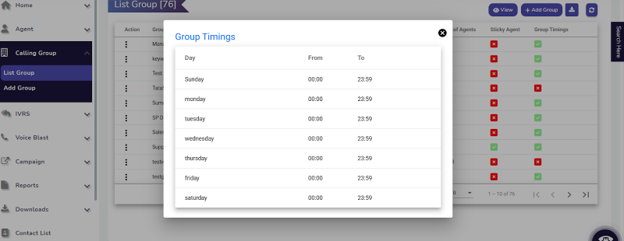
- Group Timing Visibility Enhancement: In the Calling Group section the group timing column, when timing is enabled for the group and clicking on a specific row (tick) will display the full timing schedule for the entire week, No timings for the group (cross) will not reflect any pop up. Any changes made to the day’s timing will be dynamically updated in real time. (Global Feature).
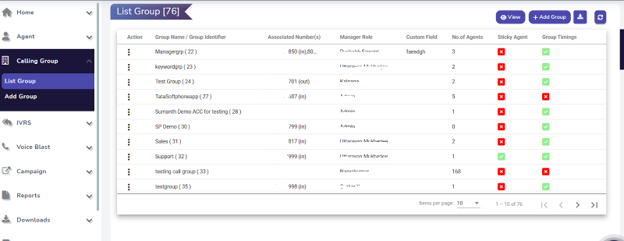
Group Name Display in Agent List: The Agent List now features a view-only column displaying the group(s) each agent belongs to. By default, up to two group names will be visible. If the agent is part of only one group, only that name will appear. Users can click on the group timing to expand and view all assigned groups associated with that agent. (Global Feature).
APIs
- Campaign API Attempts : A new column has been added to the Campaign List view to display API hits for agent availability. This column will only appear for API-based campaigns. (Global Feature).
- Agent Creation API : An API has been developed for creating agents, allowing businesses to create agents directly from the CRM, making it more convenient and eliminating the need to access the MCUBE panel.
| Parameter | Description |
| Username | The username of the agent. |
| Password | The password for the agent. |
| Call Type | Type of the call: inbound (IB), outbound (OB), or (outbound,autodialer). |
| Agent name | Name of the Agent (Unique) |
| Email ID | The email address of the agent. |
| Phone Number | Agent’s phone number |
| apikey | unique identifier for the business |
| Role Type | Defining agent, team lead, manager,etc. |
| Mail Alert | When activated, mail will be sent to the user. |
| Created by | In this we need to store the phone number who has created the agent for the business. |
Contact List :
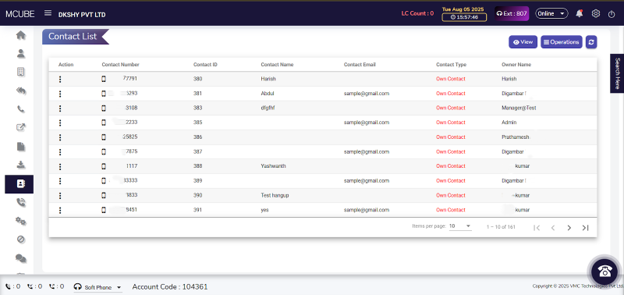
- Contact ID : A new Contact ID column has been added to the Contact List, displaying a unique ID for each new contact. This enhancement improves organization and simplifies contact management. (Global Feature).
AGENTS
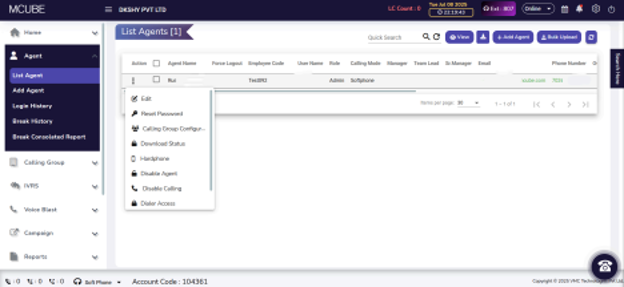
- Self-Deletion Restriction: In the Agent List under Actions, the option to delete themselves has been removed. This prevents accidental or unauthorized self-deletion through the interface.
EVENTS
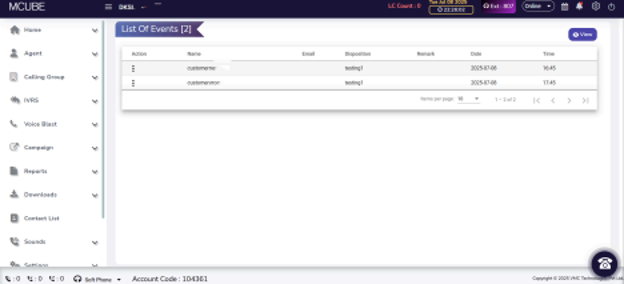
- Event List Optimization: Callback requests made (through disposition form) will create events but will no longer appear in the campaign list; they will only be shown in the Event List.
REPORTS
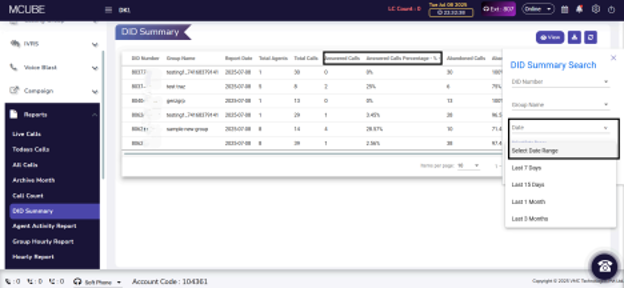
- DID Summary Report Update: The DID Summary Report now includes two new columns: Answered Calls and Answered Call Percentage, providing clearer call handling insights. The search filter also now supports data access for up to three months, enabling deeper analysis.
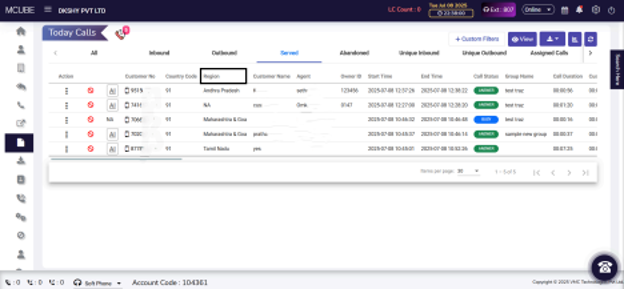
- Region-Wise Call View: A Region column has been added to the Call Detail Report (CDR), applicable to both Today’s Calls and All Calls. Call data is now displayed based on the associated region for better visibility.
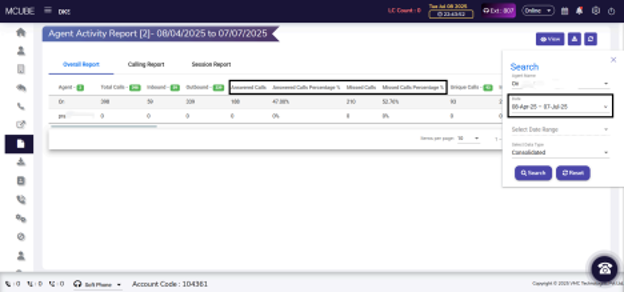
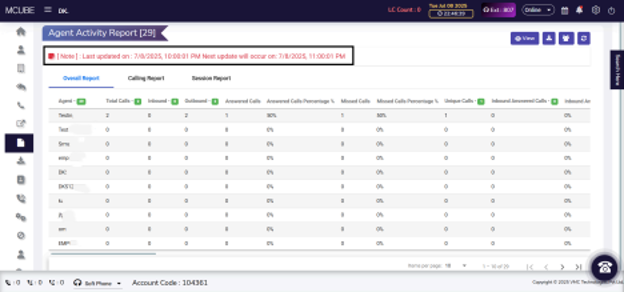
- Agent Activity Report Enhancements: Percentage values are now separated into individual columns for improved readability. The search filter has been updated to support data retrieval for up to three months, providing an extended time slab for reporting. The note displayed at the top of the page now shows the Last Updated timestamp along with the Next Update.
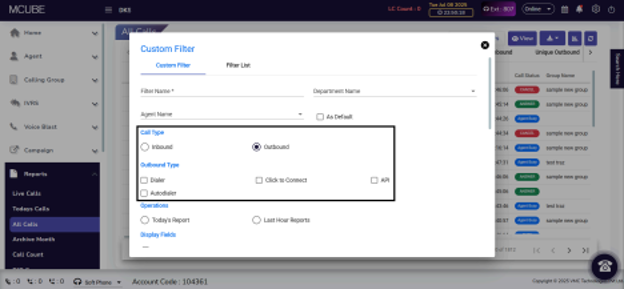
- Custom Filter Update: Enhancements are being added to analyze outbound calls made via C2C, Dialer, and API for better insights into agents’ customer callbacks.
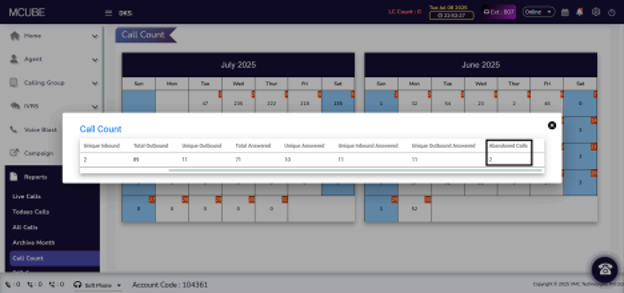
- Abandoned Call Count: In the Call Count report, when selecting a date from the calendar view, a pop-up appears showing detailed metrics. A new column, Abandoned Count, has been added to this pop-up to display the number of abandoned calls for the selected date.
- Quick Search Removed: The Quick Search option has been removed from both the Today’s Calls and All Calls reports.
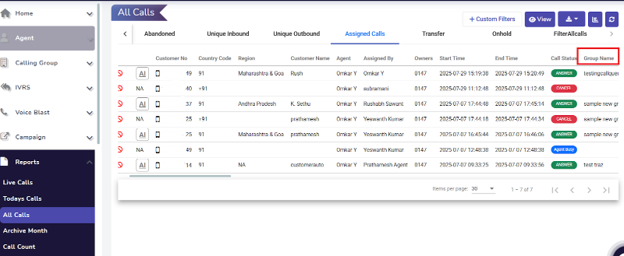
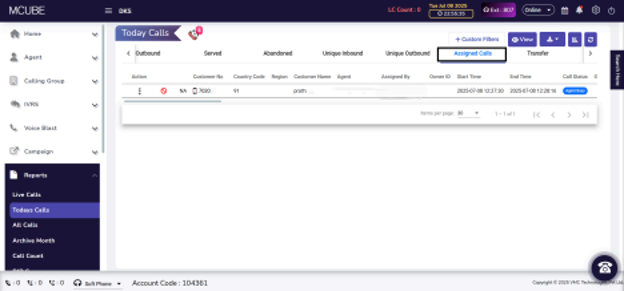
- New Assigned Calls Tab: A new tab has been added to today’s call and all calls to show the list and details of all calls assigned to agents.
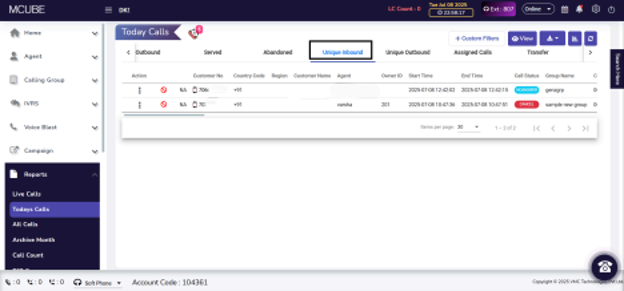
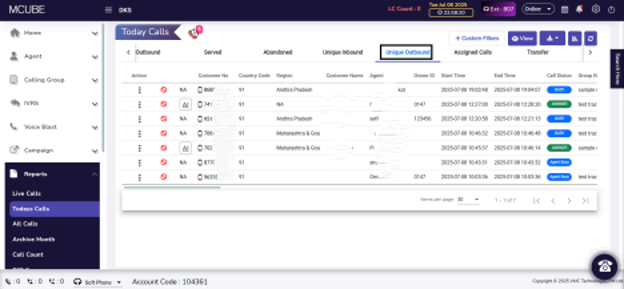
- Unique Calls Tabs: Two new tabs, Unique Inbound and Unique Outbound, have been added to today’s calls and all calls to capture distinct caller numbers. These tabs help identify and separate unique call instances from repeated interactions and which will be the fresh call.
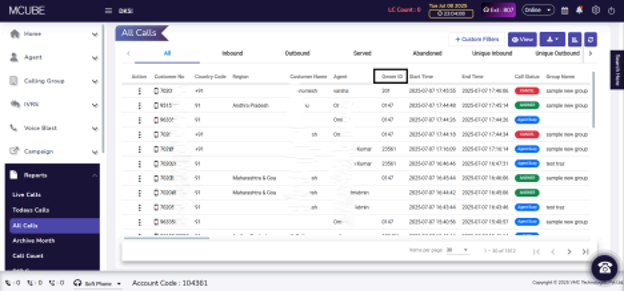
- Owner ID in CDR & Downloads : The Owner ID field has been added to the Call Detail Report (CDR) Today’s and All Calls and corresponding downloads. This allows the identification of the associated Owner ID for Agent.
What’s New?
Highlights:
- 2.0 Mobile App: Seamless setup for dialing numbers directly from the standard mobile
app dialer, with restrictions on copying numbers when number masking enabled. - Disposition – Auto Save: Automatically saves the customer’s name in CDR, ensuring consistency across calls and interactions.
- Custom Field Disposition – Single Dropdown Selection: Bug fix to allow only a single dropdown selection for custom field disposition.
- Disposition – Source Data Upload: Auto-populates the email field in the disposition popup with the “Source” value from the campaign upload.
- Campaign – List Campaign (Multi-Search): Enhanced search filter to allow multi-select of campaigns for easier comparison and analysis.
Module-wise Enhancements
2.0 Mobile App: Phone Number Copy and Dial Integration
Disposition: Auto Save – Customer’s Name in CDR
When an agent interacts with a customer, the name in the disposition form is saved in the Call Detail Record (CDR) & Contact List for consistency in future interactions. Now, any updates to the customer’s name during calls will be reflected in subsequent dispositions and in the CDR and in the Contact List.
Screenshot Reference :
1. Name change in Disposition for the customer.
2. Changed name reflected in CDR as well as Contact List for that customer.
Custom Field Disposition: Single Dropdown Selection
The custom field disposition section now allows the creation of a single dropdown in
Label type.
Screenshot Reference :
Restricting the selection of one dropdown in Custom field Disposition.
Agent: Login History Enhancements
The Agent “Login History” download feature now includes individual login and logout timestamps, enhancing accuracy in tracking working hours and facilitating auditing.
Disposition: Source Data Upload – Email Field Auto-population
Now admin can upload a campaign with a “Source” column, the “Source” value auto-populates the “Email” field in the disposition popup, which agents can edit. If absent, the email field is empty. Any data entered in the Email input is saved in the “Source” column of the CDR upon submission.
The uploaded data in source will be displayed in the Email field.
Campaign – List Campaign (Multi-Search)
Users can now multi-select campaigns in the search filter, enabling simultaneous data viewing for easier comparison and analysis.
Reports – CDR: All Data Fetch (BUG Fix)
Users can now see expected data in the All Data pop-up, which previously showed “no data found” in some tabs.
RELEASE HIGHLIGHTS
- Dashboard Enhancements: Idle Agents Sorting Button, Individual Section Refresh Option, Campaign Dashboard renamed to Campaign Call Report.
- Agents Update: Bulk Force Logout for Multiple Agents with Audit Trail, Call Status Display for Inbound/Outbound/Both, Custom Header Option with Editable Field in Settings.
- Calling Group Update: Group Filter Based on Agent Count, Support for Dual Failover Configuration.
- Campaign Improvements: “Delete All” Option in View List with Confirmation & Audit Trail, Enhanced “Download All” Option with Last Call Data Based on View Selection.
- Reports Upgrades: Call History View for Live Calls (Last 1 Month), Dynamic Header Sequencing in All Calls and Today’s Calls, Fixed Customer Number Column.
- Downloads: Updated Report Name Labels – “Today’s Calls” for Current and “All Calls” for Historical Campaign Data.
- Settings Enhancements: One-to-One DID Mapping with Auto-Assign Logic, Multi-level Disposition Dropdown for Detailed Categorization, Admin (Only View) Access Control for Call Barging, Whispering, and Monitoring Features.
DASHBOARD
- Idle Agents Sorting Button: A sorting button for the Idle Timer has been added to the dashboard, and the data can now be sorted in either ascending or descending order.
- Terminology Change: Campaign Dashboard has been renamed to Campaign Call Report.
- Individual Refresh Option: Each dashboard section now includes a refresh button, allowing users to update specific sections without refreshing the entire dashboard.
AGENTS
Bulk Force Logout Feature: A new “Bulk Force Logout” feature has been added in the Agent Section, allowing multiple selected agents to be logged out simultaneously. An audit trail of these actions is available in Settings, providing visibility into when and by whom the actions were performed.
Once you click Bulk Force Logout, a window will appear for confirmation.
Call Status Display: A new field has been added to the Agent List in the Calling Group Configuration to display the status of inbound, outbound, or both call types for groups to assign agents to the group accordingly.
Custom Header Option: The default header is set to Owner ID, but users can now select and customize the header from the custom list available in settings.
To customize the header, go to Settings → Custom → Action Button → Edit, enter the desired name, and click Update.
CALLING GROUPS
Group Module Update: An additional filter has been added to the Group Module, enabling users to search groups based on the number of agents.
Step 1: Select the Group Agent Count from the bar.
Step 2: Enter the number count and click on search
Extended Failover Configuration: The Group section now supports up to two failovers instead of one, offering added flexibility and reliability in managing fallback options.
CAMPAIGN
Delete All Option Added: In the Campaign View List, a Delete All option is now available under the Actions button to remove all contacts at once. The audit trail is available in settings to see the history of the actions made.
Step 1: In List Campaign, Go to Action Button → View List.
Step 2: You can see the last call tried at along with view data, here go to the Action Button.
Step 3: Once you click on the Actions button, you can see a dropdown for Delete All.
Once you click on the Delete All, a Pop-up window will appear for confirmation.
Enhanced Download Option: In the Campaign section, the “Download All” option now allows you to download contact information, including the last call data, if available. The download data will be based on the view selection in the List Agents section.
REPORTS
Live Calls History: In the Live Calls section of the Reports module, clicking on a customer number now displays their call history for the past 1 month.
Dynamic Header Sequencing: The Report module now supports dynamic headers in the All Calls and Today’s Calls sections, enabling customizable column sequencing.
Headers can be adjusted based on call categories in the Today’s Calls view. The customer number column will remain fixed and cannot be modified
For customizing, go to the respective call section, click on View.
Here, you can choose the sequence order as per your requirements and update it.
The headers will be sequenced based on user selection.
DOWNLOADS
Updated Name Structure: A new report name header has been introduced in the Reports Downloads section. For campaign reports, the report will be labelled as Today’s Calls when downloading current data and All Calls for historical data.
SETTINGS
DID Configuration Update: The DID Configuration module now supports one-to-one mapping, where only one DID can be assigned to each agent. The auto-assign feature activates only if the number of DIDs equals or exceeds the number of agents.
Note: This is a feature-based update.
Multi-level Disposition Dropdown: The Disposition section now supports multiple dropdowns instead of a single dropdown, allowing for more detailed call categorization.
To enable the multi-level disposition, go to Settings ➝ Call Disposition ➝ Add Disposition List ➝ Enable Multi-Level Disposition.
Thereafter, you can add options for multiple dropdowns in Label Type, and once done, click on Add.
Admin (only view)Feature Upgrade: Admins can now enable Call Barging, Call Whispering, and Call Monitoring for specific agents through the Access Control section in Settings. In this section, admins with Only View access can make the necessary changes to enable these features.
Once this is enabled, go to settings and enable the functions.
CONCLUSION
These are the major updates for this release cycle. We’re continuously working to improve the platform, and more enhancements will follow in the upcoming iterations.
RELEASE HIGHLIGHTS:
1. Dashboard Enhancements: Campaign Dashboard Tab, Status-Based Timer for Agent Activities, Mandatory Password Update Policy, Customizable Leaderboard & SLA Filter, Agent Pop-up List.
2. Calling Group Update: Calling access control for selected group employees.
3. Campaign Improvement: New Priority Column in Campaign Reports.
4. Reports Upgrades: Customer Number & Group Name Filter in Transfer Report, Call Assignment Feature in CDR Report, Flat data view, Dynamic Columns and New columns added for transfer reports.
5. Settings (Disposition List): New custom disposition field button.
DASHBOARD:
- Campaign Dashboard: A dedicated Campaign Dashboard tab has been added next to the Agent Status Report, offering a structured view of running campaigns.
Note: This is a feature-based update
- Timer for Agent Status: A status-based timer has been introduced, resetting automatically when agents transition between On Call, Idle, and Break, enabling better activity tracking.
- The timer will adjust based on the agent’s status, resetting as needed when they enter break or any other mode.
Note: This is a feature-based enhancement
- Compliance with Account Security: To enhance security, users are required to update their passwords at selected intervals. An “Update Later” option is available until the deadline, after which updating the password becomes mandatory.
- Click on Settings, go to Business Profile, and select Password Expiry Period to set the update frequency—only admins can customize this setting by choosing from different time options for password updates.
- Once the set interval expires, you’ll receive a Reset password notification upon logging in. When you receive a password update notification, click Update to proceed.
- Tap “Update,” enter a new password, confirm it, and select “Reset” to complete the process.
- Customised Leaderboard & SLA: A new feature enables filtering agents on the leaderboard and SLA based on selected options.
Note: This is a feature-based enhancement.
Agent Pop-up List: A pop-up now displays the list of agent count for Idle, On Call, Break, Logged Out, and Total. Clicking the pop-up will give detailed agent status information.
Click on any tab except the total agents to display a pop-up for the selected group of agents.
Now, you can view agent-wise information for the selected tab.
CALLING GROUPS:
Calling Access Control: Easily enable or disable calling access for specific agents from groups as needed.
In the Calling Group section, select List group and click on the Add Agent action button.
Then select Calling Access from the Add Agent tab to enable or disable calls for specific agent groups.
CAMPAIGN:
New Priority Column: The Campaign Reports now include a Priority column to indicate the call priority of the numbers in the campaigns.
Note: This is a feature-based update.
In the Add Campaign section, designate priority contacts within the selected campaign contact
file.
REPORTS:
Transfer Report: Users can now search within the Transfer Report by Group Name and Customer Number, making it easier to filter relevant data.
Call Assignment Update: In the All Calls report, users can now assign calls to specific agents, ensuring smoother operations and improved customer interaction management.
This feature is particularly useful in cases where an agent misses a follow-up or rescheduling, allowing for seamless reassignment and ensuring no customer engagement is overlooked.
In the CDR Report, go to the Action tab and select the Assign To option.
Step 2: Select the agent to assign the call
Flat Data View: View all your data in a single, streamlined format without hierarchical grouping, making it easier to access and interpret. This feature is available only in the Agent report, Agent summary & Agent activity report.
Note: This is a feature-based update.
Enhanced View Tab (Dynamic Columns): Customize reports and tables by selecting specific headers for a more focused data display.
Step 1: Click the View button located in the top right corner of every report page.
Step 2: Select any column for the group list view
Currently, only the view option is available. In the next update, users will have access to both view and download report options for enhanced data accessibility.
New Transfer Data Columns in CDR Report: The CDR report now includes three additional columns for transfer data, providing deeper insights into call transfers.
SETTINGS:
Custom Disposition Tab: The Custom Disposition Tab now includes the option to edit the headers.
Step 1: Go to settings, disposition list and click on custom disposition field button
Step 2: You can make changes in the opening tab
CONCLUSION
These are the major updates for this release cycle. Further enhancements will follow in upcoming iterations.
Release Highlights:
1. Dashboard Updates: Individual agent call counts, a new column for idle timer, and real-time call details pop-ups table.
- Call queue in group transfer feature
2. Agent Management: Disable or enable autodialer, admin actions on live calls, agent password change, and agent login history.
3. IVRS Customization: Customizable IVRS attempts & call traversal column.
4. Enhanced Reporting: Multi-group call filters, date-specific agent reports, and distinct inbound/outbound call metrics.
5. Contact List Privacy: Number and email address masking.
6. Call Details: Edit disposition in the CDR report(today’s call & all calls)
7. Settings Updates: Holiday list.
DASHBOARD:
Call Queue in Group Transfer: Calls transferred to a group are now queued until an agent becomes available, ensuring smoother transitions and reducing missed connections.
Note: This is a feature-based enhancement.
- Counts of Agents in the Dashboard: The dashboard now provides real-time visibility into agent activity by displaying counts for on-call, idle, break, logged-out, and total agents. These counts will be displayed only if the agents are logged in.
- Pop-ups for Total, Answered, and Abandoned Calls: The pop-up table now appears when clicking on the total, answered, or abandoned calls, providing updates on call activity. This allows supervisors to monitor calls more effectively.
- Change in Terminology: “Mobile” has been renamed to “Hard Phone” for better clarity and consistency.
AGENT
- Manage Autodialer Status: Admins can turn off the autodialer for individual agents when needed, giving them more control over who gets calls. This helps ensure calls are managed better based on team needs.
- Access Control: Admins can manage live call features, including monitoring, whispering, and barging, through Access Controls. In the Live Call submenu, they can choose from these three options during a live call.
- Change Password: Admins can change an agent’s password or share a reset link for secure access recovery.
Step 1: Click on Reset Password
Step 2: Enter the Password & Click on the Update or Send Email Button
- Agent Login History: Admins can track the first call time after login and the last call time before logout, providing valuable insights into agent performance.
- Idle Timer in Agent Status Report: A new column for the idle timer has been introduced in the Dashboard, Agent Summary, and Agent Status Report, allowing better tracking of agent inactivity.
CALLING GROUPS:
Agent Call Count: Individual agent call counts are now visible in the Group Agent List for call count balancing and an option for admins to reset balancing to zero.
IVRS:
- Customizable IVRS Attempts: The number of IVRS attempts can be customized to meet specific requirements.
- Detailed IVRS Data: A new “Call Traversal” column in the CDR report allows you to track every step a call takes through the IVRS system. This column displays the exact actions of customers and is shown in text format. This provides detailed insights into how customers navigate the IVRS, helping to identify areas for improvement in the process.
REPORTS:
- Multiple Group Selection: Search and filter today’s calls or all calls with a multi-select option for groups.
- Date-wise filtration: Filter agent hourly report by specific dates for better tracking and analysis.
- Unique Answered Calls Differentiation (Call Count): You can now track Unique Inbound and Outbound Answered Calls separately in the Agent Report, Agent Summary, and Agent Activity Report with updated columns.
- Edit Call Detail Disposition: Agents can now change dispositions that were already submitted in CDR reports, making it easier to update call details.
Note: Enabling disposition editing ensures access to all modified data.
Step 1: Click on the action tab & select call details
Step 2: Click on Call Details, and an Edit Call Details pop-up will appear. Make changes, then click on Submit.
CONTACT LIST:
Number Masking: Ensure privacy by masking all phone numbers and email addresses.
Note: This is a feature-based update.
SETTINGS:
Holiday List: The Holiday List feature has been introduced to view and manage company-wide holidays. This feature is available for admins only.
Step 1: Select the holiday list from settings & click on the add holiday button.
Step 2: Click on Add Holiday, and a pop-up will appear to enter the holiday details. Fill in the information and click on Submit.
What’s New!
Highlights:
- Events Control: Easily edit, reschedule, or delete calendar follow-up events.
- Dashboard Enhancements: New refresh button and added metrics for talk time, break agents, and available agents.
- Agent Control: Expanded agent hierarchy columns.
- Campaign Features: Pause campaigns with scheduled breaks and configure retry attempts up to 10 times.
- Enhanced Reporting: Improved call insights with inbound/outbound call breakdowns, transfer call counts, and visible landing numbers.
- Call Conference: Filter and add agents to conferences by group for precise collaboration.
Events:
Edit Events: Users can now edit, reschedule, or delete follow-up events directly within the Calendar invite for better flexibility.
Dashboard:
Refresh Button: A refresh button is added to the dashboard, allowing users to refresh the page without reloading the browser. A 10-second wait time applies before reuse.
New Dashboard Cards:
- Total Talk Time: Displays the total answered talk time.
- Total Available Agents: Displays the count of agents active on the panel.
- Total Break Agents: This shows how many agents are currently on break.
Agents:
New Columns in Agent List: Team Lead, Manager, and Senior Manager columns now display the reporting hierarchy for agents.
Campaigns:
- Campaign Break Time: Users can pause an ongoing campaign by scheduling a break for a specified time range.
- Retry Attempts: Retry attempts can now be configured up to 10 times for better campaign management.
Reports:
- Answered Calls Categorization: Inbound and Outbound Answered Calls are now displayed separately for clearer analysis. Additionally, a new column shows the count of Transfer Calls.
- Display Number: A new column shows the landing numbers separately for better tracking.
Call Conference:
Group Filter: Users can filter and select a group, then add agents from that group to a call conference one by one.
These updates focus on improving user convenience, enhancing analytics, and optimizing
workflows!
What’s New for You?
Summary:
Streamlined Dashboard: “Call Queue Calls” is now renamed “Calls in Queue” for better clarity.
Enhanced Campaign Management: Edit retries instantly, remove duplicate leads automatically, and manage bulk lead deletion effortlessly.
Smarter Reporting:
- Missed calls now split into Inbound and Outbound for more detailed overviews.
- Today’s Calls are integrated into All Calls reports for real-time updates.
Improved Disposition Data: Download multilevel disposition reports for detailed analysis and smarter decision-making.
Dashboard
Calls in Queue: Previously called “Call Queue Calls,” this section has been renamed for clarity.
Campaigns:
Campaign Edit:
Admin can now modify retry attempts and retry time for campaigns even while they are active. These changes take effect instantly, ensuring uninterrupted campaign progress.
Bulk Lead Deletion:
- Leads can now be deleted in bulk by selecting all or specific leads from the action tab view list
- Unchecked leads will remain in the campaign, providing more control over lead management.
Reports
Missed Calls Categorization:
- In Agent Reports, Agent Summary, and Agent Session Reports, the “Missed Calls” column has been divided into Inbound Missed Calls and Outbound Missed Calls.
- This separation enhances analysis and enables faster follow-ups.
All Calls Report Update:
- Today’s call reports are now integrated into the “All Calls” report, offering seamless access to real-time updates and a comprehensive view of call activities.
Agent Session Report Update:
- Renamed to Agent Activity Report for better alignment with its purpose.
Disposition
Download Disposition:
Users can now download reports containing multilevel disposition data.
What’s New!
Dashboard
Channel Summary: Allows agents to make autodialer, outbound, and inbound calls based on available channel capacity. (It shall be feature-based.)*
- Total Channels: Shows the total available channels (e.g., 10).
- Live Channels: Displays channels currently in use (e.g., 0).
- Team Leader Data: View hierarchical data directly in the dashboard. Click the dropdown menu to expand and see detailed information.
Reports
Live Calls:
Call Conference (Inbound Only): Allows multiple participants to join a call for inbound calls, enabling a conference conversation. Now, the agent can select a conference call type.
All Calls:
- Use the action button to view all call data.
- Call Details: Information on call routing, including the executive, date, and time.
- API Request: Shows the call route response from the API.
Recently added:
- Monitoring List: Displays who monitored the call and the date & time of monitoring.
- Hold Request: Shows the duration of the call hold. Transfer Request: Displays the agent’s duration of the call transfer.
- AI Analysis: Provides insights from AI-based analysis of the call conversation.
Autodialer Transfer:
Enables live call transfers during autodialer calls.
What’s New!
Dashboard
- The user’s name is now shown on the main dashboard.
Credits:
Users can now make outbound calls on a credits basis, with the total and utilized credits displayed on the dashboard:
- Total Credits: Shows the total available call credits.
- Utilized Credits: Shows the credits already used.
Notifications:
- Follow-Up Notification: Agents receive a notification 10 minutes before a scheduled follow-up call.
- Missed Call Notification: If an agent misses a call, the admin is notified via notification.
Agent:
List Agent: Admins can easily “enable” or “disable” dialer calling access for agents directly using the action button.
Campaign
Auto Dialer Call Queue: This feature is specifically designed for call-pacing campaigns.Users can activate it by selecting the “Auto Dialer Call Queue” option. Previously, if acall was on hold, it could disconnect. With this feature enabled, customer calls will be placed in a queue instead of disconnecting. The calls will then be routed based on a specified ratio.
Reports:
Call Actions Report: A detailed summary of all interactions that includes details on monitored whispered, and barged calls, highlighting key data such as customer numbers, agent performance, and call durations.
This report provides data on the following categories:
- Monitor List: Details about calls being monitored.
- Whisper List: Information on calls where whispering was used.
- Barged List: Data on calls that were barged in.
Transfer Report: It provides a summary of call transfers, detailing the following information:
- Customer No: The customer’s phone number.
- Agent Name: The name of the agent handling the call.
- Agent 1 Call Duration: The duration of the call before the transfer.
- Group Name: The group to which the agent belongs.
- Transfer To: The name of the agent to whom the call was transferred.
- Agent 2 Call Duration: The duration of the call after the transfer.
- Total Call Duration: The total time spent on the call, including both agents’ durations.
Hybrid Switchover Report: It provides information about the transition between softphone and hardphone for agents. The report includes the following details:
- Agent Name: The name of the agent involved in the switchover.
- Mode: Indicates whether the agent switched to a softphone or hardphone.
- Switched From: Specifies the device the agent was using before the switch.
- Switched At: The timestamp indicates when the switchover occurred.
Setting:
Audit Trail: The search option now allows you to search by agent name, providing access to all data related to that agent.
Roles:
Under the action button for Access Control, there is an option for “Hybrid Switchover”, which is set by default. By selecting this checkbox, “Number Masking” access can be granted to agents, their respective managers, or team leads.
Call Disposition:
Disposition List: It refers to a predefined set of outcomes or statuses that users can select to categorize or finalize the result of an interaction.
The Disposition Types provided seem to categorize different outcomes with their status and time period for updates and creation. Here’s an explanation of the table:
- Disposition Types: Represents the type of outcome or classification (e.g., “Not Responding,” “DND Status”).
- Updated on: The date or time when the disposition type was last updated.
- Created on: The date or time when the disposition type was initially created.
- Status: Indicates whether the disposition is currently Active or Inactive.
Custom Field Disposition: Here’s a simple breakdown of how it works:
- Text Area: A space for users to enter longer text, like comments or descriptions.
- Text Field: A single line for shorter information, such as names or emails.
- Dropdown: A menu with predefined options (e.g., test1, test2, etc.) for users to choose from.
- Date/Time: A field where users can enter or select a specific date and time.
- Checkbox: A simple box for users to select or unselect, used for yes/no choices.
Users can also add new fields based on their needs, but 5 fields are pre-set. After everything is arranged, they can update the disposition field to reflect the final status or outcome.
What’s New!
DND Confirmation
- This pop up ensures that only genuine data sources are used. If the admin checks the box and submits the button, it confirms no outsourced data is being used.
Note: Only the admin has access to select the checkbox and submit the confirmation.
New Update!
AI Analysis:
- Now transcribes audio into text and analyzes the call conversation, providing insights into the tone of the response—whether Positive, Negative, or Neutral.
How does it work?
- Audio Transcription: The AI system converts call interaction words from the call audio into text, creating a transcript of the conversation.
- Text Analysis: The transcribed text is analyzed in key phrases, sentiment, and tone.
- Sentiment Classification: The system classifies the conversation into categories such as positive, negative, or neutral based on the detected sentiment and emotional tone.
- Insight Processing: Based on the call recording conversation, the AI provides insights and summaries, highlighting the overall customer experience and identifying areas for improvement.
Agent
Softphone Status:
- Indicates the agent’s device status. If the agent is using a softphone, their status will show as “Online.” If they are using a hardphone, it will display as “NA” (Not Available).
Add Agent:
Employee Code: A unique identification number assigned to each agent for record-keeping and identification purposes within the system.
Note: Employee Prefix: Allows Admin, Sr. Manager, or Manager to provide an alphanumeric code as a prefix to the “Employee Code” for more precise identification.
Reports
Consent:
A new column has been added to indicate whether only genuine data sources are being used, displaying either “Yes” or “No” for clarity.
All Calls
Block Number:
A block number icon has been added, allowing users to directly block contacts with a single click.
Report Search:
Allows users to search reports by specific date, month, year, and exact time for more detailed data retrieval.
Download Filter:
You can download reports by selecting checkboxes to obtain them in a specific sequence.
Contact List:
Buttons have been moved into a new “Operation” button within the list view for better organization.
Contact Type:
This column shows whether a contact is “Shared” or “Own Contact” (By default, is set to “Own Contact”).
Add Contact:
Shared Contact: The admin can assign and enable the sharing of contacts with other users or teams.
Auto Dialer License:
Allows businesses to allocate a specific number of licenses for autodialer calls. These licenses can be assigned to agents during the creation or editing of agent profiles.
What’s New!
Dashboard
Break Analysis:
The Break Analysis feature allows users to examine and track agents’ break times efficiently.
Here’s a breakdown of the key components:
- Line Graph Types: Visualize break data in a line graph format, providing a clear and continuous view of break patterns over time.
- Bar Graph Types: View the break data in a bar graph format.
- Filter By Hours: Admin can filter the data based on specific hours to focus on break times during particular periods.
- Select Agent: Admin can select specific agents to analyze their break patterns individually, allowing for a more focused and detailed analysis of each agent’s break behavior.
Wrap-Up Time:
Displays the amount of time agents spend on post-call tasks, categorized by disposition type.
- The time configuration is currently set in the backend.
Setting
Break Reason:
Give specific reasons for taking a break, like a meeting. This is feature-based.
- Break Time (In Minutes): Set the duration of the break.
- Force Logout: Prioritizes logging out of the agent and ending the break when the time limit is exceeded.
- Break Auto Release: Automatically ends the break when the set time runs out.
Visible the status using checkboxes: Green: Enabled, Red: Disabled
Agent Break History:
- Break Exceed Time: Indicates the time duration after a break exceeds the allowed limit, shown in red.
- Break Released Reason: Shows why the break was ended or released.
- Notification: When break time exceeds, a pop-up alert is shown to the reporting manager or team lead and is visible in the notification tab.Additionally, pop-up notifications are provided for agent breaks and idle time.
Add Disposition Type:
Data Push:
- A feature-based data push specifically for handling disposition data.
Campaign Report:
Call Attempts:
- A new column has been added to display the number of times an attempt was made to connect a call.
Add Campaign:
Choose the type of campaign you want to run.
- Ratio Dialer: Automatically distributes calls based on the specified ratio according to the call volume. This is a feature-based Campaign Type.
Reports:
Live Calls:
Search Here:
Agents can now search for details using any of these four criteria. E.g. Agent Name, Group Name, Call Type, and Customer Number.
Today Call:
The Action button now includes a “Block Number” option for blocking direct contacts.
Agent Session Report:
- Overall Report: Consolidates all data from various reports.
- Calling Report: Details about calling activities.
- Session Report: Information on agent session activities.
Note: This report will consolidate and replace both the Agent Report and Agent Summary.
Search:
You can filter by duration using the following options:
- Total Duration: Filters based on the total time of the call.
- Answer Duration: Filters based on the total time answered calls.
- Range: You can now perform customized searches using selected time ranges with symbols such as <, >, and = for more precise filtering.
Note: You can view only the following report sections: All Calls, Today Calls, and Campaign Report.
What’s New!
Agent Report and Summary:
Search Option:
- Select Date Range: View agent performance data from the last 7, and 15 days and get a comprehensive report for the last month also.
- Choosing a date range allows access to the corresponding “Data Type”.
Select Data Type:
Consolidated: See a combined report of all agents of a specific date range, providing an overall view of performance metrics.
Individual: Access detailed reports for each agent, allowing for individual performance evaluations.
Calling Group:
Admin can create groups with 4 different calling formats:
Idle Time: Agents with more idle time get the next call.
Talk Time: Agents with less talk time get the next call.
Priority: Agents receive calls based on assigned priority (e.g., an agent with priority 1 gets calls before an agent with priority 2).
Note: If the sticky agent option is enabled, the Priority format will not work.
Group Counter-Based (Default): Agents with fewer calls get the next call which has more idle time.
Failover in Groups:
- This option can be selected in both “Add Group” and “List Group”.
- If selected, the agent will receive calls last, only if other agents do not pick up.
- Failover is not available if a sticky agent is assigned to the group.
- If a group has both failover and priority options enabled, failover will take the first place, and priority will be disabled. (For example, if an agent has both priority 1 and failover enabled, they will receive calls based on the failover setting.)
Only View:
Only View: If selected, the assigned admin can only view all information, without making any changes.
Campaign:
Call Priority:
- Calls are directed based on user-set priority numbers, with the highest priority getting the first call.
- Users can set call priorities using serial numbers.
- If “special characters”, “alphabetical letters”, or the Number “0” are used in the list, those calls will be assigned the least priority.
Note: The priority column must be filled out to enable this call priority feature.
Campaign Timings:
- This feature lets you schedule the exact times when the autodialer will be active each day.
- For the enabled days, you can enter one or more time slots by specifying “From” and “To” times.
- This feature ensures that campaign calls are made only during specific times, allowing users to configure the times according to their campaign requirements.
- This feature is only available for new campaigns. For existing campaigns, the timing settings will not apply. If users want to set campaign timings, they must create a new one.
Retry Attempts:
- You can set retry attempts between 1 to 5.
- The first retry will occur (for example, 5 minutes) after the initial call attempt. The system will attempt to place the call again within the mentioned time period.
Note: If a campaign call picks by customers in first attempt. Then other retry attempts will automatically be disabled.
Feedback System
- Agents can transfer calls to the IVR feedback system without disrupting the customer experience.
- The IVR feedback feature can be activated by pressing “9” on the keypad during a call.
- Customers can provide feedback using keypad inputs Dual-Tone Multi-Frequency (DTMF) during their interaction with the IVR system.
Note: This feature is only available in hardphone mode, currently unavailable on softphone.
Feedback Module :
- Agents can access a feedback menu to upload audio files for IVR prompts in the “Add” option.
- Agents can upload multiple audio files, each representing a different IVR question for feedback.
- The system provides clear options for uploading files, adding questions, and handling errors effectively.
Live Call:
Call Monitoring: Supervisors or Admin can listen to live calls without the agent or customer knowing.
Call Whispering: Supervisors or Admin can speak to the agent during the call without the customer hearing.
Call Barging: Supervisors or Admin can join the call and speak to both the agent and the customer during ongoing calls.
Bulk Assign :
1- Admins can assign the owner name for multiple contacts at once.
2- By selecting the checkboxes for desired contacts, the “Bulk Assign” option will appear on the dashboard, allowing for easy bulk assignment.
3- Multiple contacts can be assigned by clicking the checkbox.
Single Contact Assign:
Admin can select a single contact by clicking the checkbox of the desired contact that will be assigned to the user.
Bulk Delete:
Agents can delete multiple selected contacts in one action, or also choose the option for a single delete from the action tab.
Shift Timing Configuration :
General Shift: User can assign shifts to particular agents in daywise, specific time shifts.
Round the Clock Shift:
In this feature users would have the feasibility to configure shifts around the clock. Users would need to configure by configuring each half of the day at once.
Calling Group:
In this two new columns have been added in which users would have the feasibility to see if the created group has the below options enabled or not.
Sticky Agent : If the sticky agent is enabled for a group it would have the green tick in the column or would have the red cancel mark .
Group Timings : If the group timings is enabled for a group it would have the green tick in the column or would have the red cancel mark .
Bulk Assignment for Agents
Calling Mode Configuration:
1- When multiple agents are selected, the “Select Mode” feature becomes available.
2- Admin can choose agents preferred mode, switching between softphone and mobile options.
Agents Group Configuration:
By selecting the checkboxes’ the admin can add the selected agents directly into a calling group.
Audit Trails:
1- Every activity in the panel is now recorded in a log report, making it easy to track and review all actions.
2- Admin can search these activities by date for easy tracking and review.
3- In this a search option has also been added in which we have a date search for the audit log.
What’s New!
The “Lead Count” feature allows administrators to effectively monitor and manage lead counts on the dashboard.
Here’s a breakdown of its functionality:
- This option is exclusively available to the Admin and includes features such as Lead Count Management and Break Percentage control. Admin can access this feature from the “Profile” option in the header section of the dashboard.
- Colour-coded Targets: The lead count is visually represented with colour-coded:
For example:
- Red: Indicates that the achieved campaign targets are fewer than the expected count.
- Yellow: Indicates that the achieved campaign targets are moderate compared to expectations.
- Green: Shows that the achieved campaign targets meet or exceed expectations.
- Admin Configuration: Administrators can set the lead margin count and conversion time in seconds. This configuration allows for customised thresholds based on specific campaign targets.
- The lead count information is prominently displayed in the header section of the interface, providing users with quick access to real-time updates on lead performance.
- Autodialer calls halt automatically upon reaching the campaign daily target.
- A crown icon appears in the header “LC Count” to signify that the lead target has been met for the day.
Overall, this feature empowers administrators to efficiently track lead counts, set campaign performance targets, and make data-driven decisions to optimise lead management processes.
Break Management:
- Break Management is accessible under the “My Profile” Option.
- Predefined limits allow 10% of agents to take a break simultaneously. If this limit is exceeded, a pop-up notifies that the break limit has been exceeded. The percentage can change accordingly.
- Admins have the authority to regulate the number of agents permitted to take a break at a time.
- While agents are on break, the Admin cannot alter the Break Percentage until all agents return to the online stage.
Lead Count Management:
- This feature allows setting a predetermined duration for each call.
- If a call exceeds this preset duration, it is counted as a converted lead.
Note: The Lead Margin Count field accepts input in numbers.
Autodialer Status:
- The current status of the Autodialer is indicated as “Resume or Pause Auto Dialer.”
- Agents are allowed to “Pause” or “Resume” the Autodialer status only in specific cases, such as during meetings or urgent work situations.
- If the agent achieves the campaign target during campaigns, the auto-dialer will pause automatically.
Campaigns:
Campaigns in our system are classified into three assignment types for efficient management: Predictive, Progressive, and Preview.
1- Static Campaigns:
- Agents are added individually to the campaign.
- Calls are distributed exclusively to the assigned agents, ensuring that only designated agents receive the calls.
2- Dynamic Campaigns:
- Group-wise agents are added to these campaigns.
- Calls are allocated among the agents associated with the respective groups, Calls are distributed to agents within these groups.
3- API Campaigns:
- This type involves direct backend configuration through integration.
- API campaigns offer seamless integration with external systems or platforms.
Group Report:
- Configuration allows for detailed monitoring of group performance.
- Displays group names and their performance for the day. The group owner, typically the department manager, is indicated.
- Data is downloadable with admin access to download all data. Clicking on a Group Name reveals comprehensive group details.
- Date-wise filter where the user would be able to select one single day and the same day’s details can be displayed.
Roles:
- The “Access Control” feature allows the Admin to manage access to various options.
- By marking checkboxes, the Admin can enable specific options for agents and other users. Access Control gives the Admin precise control over which features are accessible to agents
Note: Whenever the admin adjusts “Access Controls” settings by selecting checkboxes, specific options become available to agents and other users. To enable these changes, agents need to log out and then log in to their system. This ensures that the new access permissions are applied effectively.
Live Dashboard:
The automatic refresh feature ensures users have instant access to the latest data without the need for manual refresh.
Improved User Interface:
- A new tree structure has been added, where with just a dropdown the hierarchy structure can be accessed to help Sr. Managers, Managers and Team Lead quickly access the status reports of their team members.
- Simply click on the arrow down in the action menu to expand and view the status of your team members.
Hierarchical Data Display:
- The report is now hierarchy-based, allowing reporting leaders to see data based on their role’s seniority.
- This would allow the managers to only see the data of their team members who report to them directly.
Live Status Viewing:
- Admin, Sr. managers, Managers and Team Lead can view the live status of their team members directly from the dashboard.
- In the admin, senior manager, manager and the team leader level the data would include information of Live Calls, Idle Agents, Break Agents, Total Agents, Total Calls and Answered Calls in real-time.
- In the agent level this panel would include Total Calls, Answered Calls, Average Speed of Answer, Agent Status, Idle Time and the Call Duration for the agent.
Campaign Break Report:
This panel would show the records of all the time the agent has enabled and disabled the autodialer. This would also record the total time spent by an agent in the autodialer queue.
- Agent Name: This would help to identify the agent.
- Total Time: View the total time an agent has spent in the autodialer.
- Start Time: This would show when an agent has paused the autodialer.
- End Time: This would show when the agent has resumed the autodialer.
Autodialer Status:
Users can now temporarily pause and resume the Auto Dialer status providing greater control over autodialer calls.
- Users can access the Pause and Resume settings within the My Profile configuration menu.
- Save the settings to activate the Pause and Resume Auto Dialer functionality, ensuring seamless control over call flow management.
Dynamic Role Management:
- As the hierarchy structure was introduced with 5 hierarchy levels, now it has been changed into a customized hierarchy structure where a user can define the hierarchy level as per their requirements.
- In this feature the user would have the feasibility to enable and disable the below mentioned roles from the hierarchy structure :
- Senior Manager
- Manager
- Team Leader
This would help the user to create a hierarchy structure starting from two hierarchy levels up to five hierarchy levels.
- Admin and Agent Roles are fixed and cannot be edited.
- Sr. Manager, Manager and Team Lead is editable as per the requirement of the user.
- If any of the roles are disabled and enabled again, then the user needs to reconfigure the hierarchy structure once again by going to the edit agent tab.
[Note]: If a role is disabled and enabled again then the hierarchy structure then it needs to be reconfigured once again, before getting the hierarchical report.
[Note]: If a role assigned as a group owner is disabled then the group owner’s details need to be updated with the available roles in the system for a seamless experience.
Steps to enable and disable roles from hierarchy structure:
- Open Settings from the left hand panel.
- Select roles from Settings option.
Choose the role(Sr.Manager, Manage, Team leader) from the action tab, to enable and disable it. - Once the Role is disabled, then that agent cannot login.
Steps to configure the hierarchy structure:
While configuring the hierarchy structure, the user needs to configure it in the top to down hierarchy structure.
- Users first would need to configure the Sr.manager role reporting to the admin.
- Under the Agent tab click on List Agent.
- From list agents click on the Edit agent option in the action button.Then the user would see the option to configure roles as Sr.Manager, Manager, Team Leader, Agent from Emp Role dropdown option.
- Once the Sr. Manager role has been successfully configured then the same steps can be followed to configure Manager Role.
- The above mentioned steps can then be repeated to configure the users in the following order respectively:
- Manager
Team leader - Agent
[Note]: Once the management roles are configured then the user can assign the Sr.Manager, Manager, and Team Lead to the Agents.
Steps to assign hierarchy structure:
- Select the Agent option from the left hand panel.
- Click on the View Agent option.
- Click the Edit button from the Action Tab.
- Select Emp Role from the employee role dropdown as Agent.
- Once an Agent role is selected then users need to choose Team Lead from the dropdown which would show the list of team leaders already configured. Once the Team Lead is selected from dropdown, then as per configured hierarchy the Manager and Sr. Manager will be automatically selected.
Reports Updates:
In the reporting structure three columns have been added for a better analysis on the agent’s level as well as on the manager’s positions.
These columns would be available on the basis of whichever roles have been activated on the role structure.
Group Details:
This provides users with quick access to the landing numbers assigned to a specific group, improving overall visibility and management of group assignments.
A search option has also been added with a feasibility to search using the below mentioned points:
- Landing Number
- Group Owner
We’re thrilled to announce a suite of innovative features soon to grace the MCUBE 2.0 panel, meticulously crafted to elevate your experience:
⬆️ Bulk Agent Upload: Time is precious, and we’re here to help you save it! Effortlessly onboard multiple agents in one go with our new Bulk Agent Upload feature.
? Logout Reasons: Gain insights like never before with the ability to track why agents are logging out. Understanding your team’s workflow just became a whole lot easier!
⏰ Break Exceed Alerts: Keep tabs on break times with our Break Exceed feature, ensuring your team stays refreshed and ready to tackle what’s ahead.
? Account Code Security: Introducing Account Codes for an added layer of security, guaranteeing that only authorized personnel access critical functions.
? Release Notes on MCUBE 2.0: Stay in the loop with all the latest updates and enhancements directly on your MCUBE 2.0 panel.
? IP-Based Login: We’re ramping up security! Enjoy an added peace of mind with IP-Based Login, ensuring secure access from trusted locations.
⏲️ System Idle Time (Admin Configurable): Tailor your system like never before. Admins can now configure system idle times, optimizing performance and security.
? Hourly Agent Report Gets a Colorful Boost!
Understanding agent activity just got a splash of color! Our additional panel in the Hourly Agent Report now uses intuitive colors to indicate agent statuses:
- Green: Agents who are idle or currently on a call.
- Yellow: Agents taking a well-deserved break.
- Red: Agents who haven’t logged in.
? Terminology Update
We believe in clarity and precision. The term “Offline” has been given a little twist and is now represented as “Break” throughout the panel.
? Dialer Enhancement
Making outbound calls? We’ve got a tweak for you! Now businesses can effortlessly select between GSM or DID using our newly incorporated drop-down in the dialer.
? Stay Informed with Our Info Icon
A little puzzled about how calls are compared? Just hover over our newly added information icon on the top panels for a clearer understanding of call comparison representation.
? Refreshed Dashboard Experience
Our team has been hard at work refining your user experience. The revamped dashboard now boasts additional panels, shedding light on vital call metrics:
- Total Calls: Get an instant snapshot of overall call traffic.
- Total Answered Calls: Gauge your team’s responsiveness.
- Total Abandoned Calls: Identify potential areas for improvement.
- Total Live Calls: Stay updated on real-time engagements.
? Unified Graph Panels
Seeking comprehensive insights without the clutter? We’ve combined the graph panels in the dashboard, equipping them with multiple filter options. Dive deep into your data with just a few clicks!
? Enhanced Agent Oversight
The Agent report panel now effortlessly displays both active and inactive agents, ensuring you have the complete picture at all times.
? Call Count Comparison
Track your performance trends effortlessly. With our new feature, you can instantly compare any fluctuations in call counts, helping you strategize better.
? Introducing the Campaign Dashboard
Get an unparalleled overview of your marketing endeavors. Our brand-new Campaign Dashboard provides a visual breakdown of live campaigns and those active over the past week.
? Live Campaigns – At Your Fingertips
Want a closer look at ongoing campaigns? We’ve got you covered! You can now track live campaigns distinctly within the dashboard’s action section.
? Dialing Details Just Got Clearer!
Ever found yourself wondering the origin of your calls? Worry not! Our revamped reports now distinctly showcase if the call was made via a Softphone or a Mobile. It’s all about giving you the clarity you deserve.
? Dive Deeper with Our Agent Hourly Report!
Understanding agent call metrics just became a breeze. We’ve transformed the Agent Hourly report into a powerhouse of insights, complete with separate tabs for Inbound Calls, Outbound Calls, Served Calls, and even those pesky Abandoned Calls. Navigate with ease, understand better, and optimize effortlessly!
? More Control at Your Fingertips!
We’ve listened to your feedback and guess what? Under the Action button, you can now find a sleek “Disable Calling” option. Manage your calling preferences seamlessly, because you should always be in control.
? Boost Your Efficiency: ZOHO Integration is Here!
To all our CRM aficionados, here’s something to cheer about! We’re thrilled to announce a seamless integration with ZOHO, bridging the gap between top-notch communication and efficient customer management.
Join us on this exhilarating journey, and as always, thank you for being an integral part of our innovation!